
Convert Your Anki .apkg File to PDF Flashcards
Oct 08, 2026 · 11 min read · The Quizard Team

An .apkg file is a package file used by Anki, a popular flashcard program, to store and share decks of flashcards, including text, images, and audio. While you cannot directly convert an .apkg file into a printable PDF in one step, you can easily open it in Anki, export your flashcards as text, and then use an online tool to format that text into a PDF.
This guide will walk you through understanding .apkg files, how to access their content, and the process of converting your Anki flashcards into a printable PDF format, providing a versatile option for your study routine.
What is an .apkg File?
An .apkg file is essentially a compressed archive that bundles together all the data for an Anki flashcard deck. This includes the individual flashcards themselves (front and back text), any associated media like images or audio clips, and the deck's structure and scheduling information. Anki uses these files for easy sharing and backup of flashcard collections.
Think of it like a ZIP file specifically designed for Anki content. When you download a shared Anki deck, for example, from an online repository or a classmate, it will typically be in the .apkg format. This single file contains everything you need to start using that deck within the Anki application.
Anki itself is a powerful, open-source spaced repetition software. Spaced repetition is a learning technique where review intervals for learned material increase over time. This method aims to leverage the testing effect and active recall to improve long-term memory retention. By delivering reviews at optimal intervals, Anki helps students focus on material they are most likely to forget, making study sessions more efficient.
Why Convert Anki Flashcards to PDF?
While Anki excels as a digital study tool, there are several reasons why you might want a physical or printable PDF version of your flashcards:
- Offline Study: Digital devices can be a source of distraction. A printed PDF allows you to review your flashcards anywhere, without needing a computer, tablet, or internet connection, which can be particularly useful in environments like libraries or during travel.
- Active Annotation: Many students find it beneficial to write notes, add diagrams, or highlight information directly on physical study materials. A PDF copy facilitates this hands-on approach, allowing you to personalize your flashcards with additional context or memory aids.
- Different Learning Styles: Some learners prefer the tactile experience of shuffling physical cards, or the visual layout of printed pages. Moving between digital and physical formats can cater to different learning preferences and keep your study routine varied.
- Reduced Screen Time: Excessive screen time can lead to eye strain and digital fatigue. Incorporating paper-based study materials like printed flashcards can provide a welcome break and support overall well-being during intense study periods.
- Sharing and Group Study: A PDF is an easy-to-share format that anyone can open and print, regardless of whether they use Anki. This can be beneficial for group study sessions where not everyone uses the same digital tools. You can hand out printed sheets for collaborative review or quick quizzes.
Converting your Anki flashcards to a PDF can thus serve as a valuable complement to your digital Anki workflow, offering flexibility and catering to diverse study needs.
How to Open and Use .apkg Files
To access the content within an .apkg file and begin using its flashcards, you need the Anki application. Anki is available across various platforms, making it accessible to most students.
Steps to Open an .apkg File:
- Download and Install Anki: If you haven't already, download the Anki application for your operating system (Windows, macOS, Linux, Android, iOS) from the official Anki website. The desktop version is generally recommended for managing decks and exports.
- Import the .apkg File:
- Desktop: Open the Anki application. Go to File > Import. Navigate to the location of your .apkg file, select it, and click "Open." Anki will then import the deck into your collection.
- Mobile (AnkiDroid/AnkiMobile): On most mobile devices, simply tapping or opening an .apkg file will prompt AnkiDroid (for Android) or AnkiMobile (for iOS) to import the deck automatically. Alternatively, you might need to use the "Import file" option within the app's menu.
- Start Studying: Once imported, the new deck will appear in your Anki deck list. You can then select it and begin a study session, leveraging Anki's spaced repetition algorithm to optimize your learning.
Anki's interface allows you to customize card appearance, add new cards, edit existing ones, and track your progress. For comprehensive guides on using Anki effectively, you can explore many resources online, including blog posts such as our comparison Quizard vs Anki which details how these platforms function.
The Challenge of Printing Anki Decks Directly
While Anki is excellent for digital learning, it doesn't offer a built-in "print to PDF" function that neatly formats flashcards onto printable sheets. Anki's primary focus is on the interactive, digital review experience. When you try to print directly from Anki, you often get a basic textual printout that isn't organized into an intuitive flashcard layout suitable for cutting or easy review.
Many users attempt to print Anki cards by modifying card templates, which requires some technical knowledge of HTML and CSS, or by taking screenshots, which is time-consuming and inefficient for large decks. These methods rarely produce the clean, structured output that most students desire for physical flashcards.
The good news is that there's a straightforward workaround. The key is to first export your Anki deck into a text-based format, which can then be processed by other tools designed for layout and printing. For detailed instructions on how to perform this crucial export step from within Anki, refer to our existing guide: How to Export an Anki Deck to PDF for Printing and Offline Study. This guide will help you get your flashcard data ready for the next stage of conversion.
From .apkg to Printable PDF: The Multi-Step Process
Converting your Anki .apkg file into a polished, printable PDF requires a few steps, but it's a straightforward process that combines Anki's export capabilities with a dedicated online conversion tool.
Step 1: Import the .apkg File into Anki
Before you can export your flashcard data, you first need to get the .apkg file's contents into your Anki application. If you've just downloaded an .apkg file, follow the instructions in the "How to Open and Use .apkg Files" section above to import it into your Anki collection. Ensure the deck is visible and accessible within your Anki desktop application.
Step 2: Export Your Anki Deck as Plain Text
Once the .apkg deck is imported into Anki, you need to export its contents into a text file. This text file will contain all the flashcard information in a structured format, typically with front and back fields separated by a tab or comma.
- Open Anki Desktop: Launch the Anki application on your computer.
- Select the Deck: From your list of decks, select the one you wish to convert. You don't need to open it for studying; just highlight it.
- Initiate Export: Go to
File > Export. - Choose Export Format: In the export dialog box:
- Select "Notes in Plain Text" as the export format.
- Ensure "Include HTML" is unchecked unless you specifically want to preserve HTML formatting for advanced purposes. For simple, printable flashcards, plain text is usually sufficient.
- Choose a location on your computer to save the
.txtfile and give it a descriptive name.
- Export: Click "Export." Anki will create a text file containing all your flashcard data.
For more detailed guidance on this step, including screenshots, refer to our comprehensive article: How to Export an Anki Deck to PDF for Printing and Offline Study. This will ensure your export is correctly formatted for the next step.
Step 3: Convert the Anki Text Export to PDF
Now that you have your flashcard data in a plain text file, you can use a dedicated online tool to transform it into a well-formatted PDF suitable for printing.
Quizard offers a free Anki to PDF tool specifically designed for this purpose. This tool takes your exported Anki text file and arranges the flashcard content into a clean, printable layout.
Using Quizard's Anki to PDF Tool:
- Go to the Anki to PDF Tool: Open your web browser and navigate to Quizard's Anki to PDF converter.
- Upload Your Text File: On the tool page, you will find an option to upload your Anki text export file (the
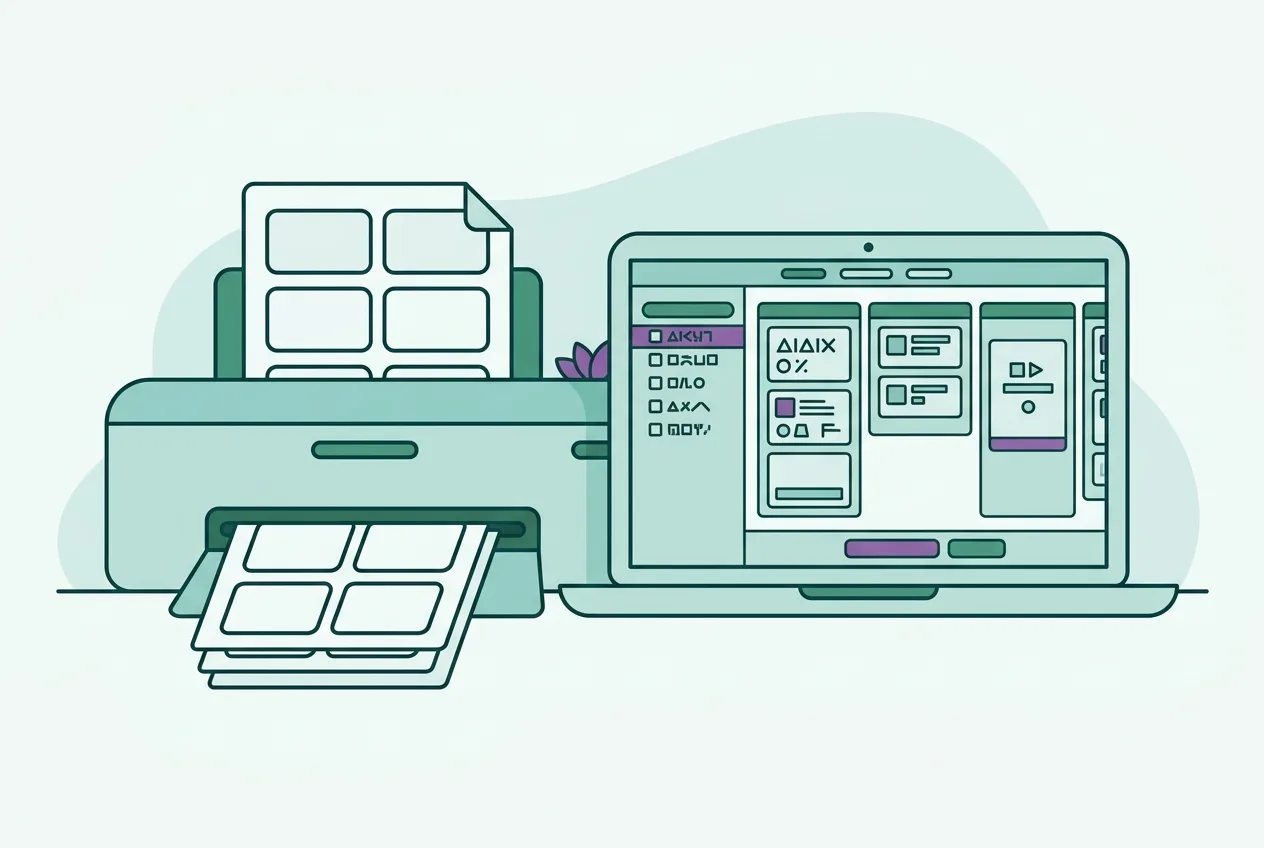
.txtfile you created in Step 2). Click the upload button and select your file. - Customize Options (Optional): The tool may offer options to customize the PDF output, such as card size, margins, or whether to include the front and back on the same page or separate pages. Adjust these settings according to your printing preferences. For instance, you might choose a layout with four flashcards per page to save paper, or a format that places the answer on the back of each card if you intend to cut them out.
- Generate PDF: Once your file is uploaded and any desired settings are chosen, click the "Generate PDF" or "Convert" button. The tool will process your text file and create a PDF document.
- Download PDF: After processing, a download link will appear. Click it to save your new flashcard PDF to your computer.
This PDF will contain all your flashcards, neatly arranged and ready for printing. This method streamlines the process of getting your digital Anki content into a physical format, combining the benefits of Anki's spaced repetition with the convenience of traditional study aids.
Leveraging Printable Flashcards for Enhanced Study
Having your Anki flashcards in a printable PDF format opens up new avenues for effective study. While digital Anki is powerful, integrating physical flashcards into your routine can reinforce learning through different sensory and cognitive pathways.
- Active Recall with Physical Cards: Print your flashcards and cut them out. Physically holding and shuffling cards can enhance the active recall process. You can mix up decks, separate cards you know from those you need to review, and test yourself on the go without distractions. This hands-on method encourages deeper engagement with the material.
- Sequential Review: If you print your flashcards with fronts and backs on separate pages (or in a way that allows you to fold them), you can review them in a linear fashion, turning pages to reveal answers. This is useful for initial passes through a deck or for specific topics where sequence matters.
- Annotate and Elaborate: As you review your printed cards, use pens or highlighters to add extra notes, draw small diagrams, or make connections to other topics. The act of writing can solidify understanding and create stronger memory links. This is a benefit that digital flashcards cannot replicate as easily.
- Group Study Sessions: Print multiple copies of a deck for a study group. You can quiz each other, discuss answers, and collectively identify areas of confusion. This collaborative learning can be highly effective, as explaining concepts to others reinforces your own knowledge.
- Targeted Focus: If you have a particularly challenging subset of cards, print just those. You can then carry them with you for quick, focused review sessions throughout the day, maximizing small pockets of study time.
By combining the systematic review Anki provides with the flexibility and tactile engagement of physical flashcards, you're employing a multi-modal approach that caters to various learning preferences. This strategy can lead to more robust memory retention and a deeper understanding of your course material. For more insights into optimizing your use of flashcards, explore resources on the science of flashcards.
FAQ
Can I directly convert an .apkg file to PDF without using the Anki application?
No, you generally cannot directly convert an .apkg file to a printable PDF without first importing it into the Anki application. The .apkg file is a proprietary archive format, and only Anki can properly unpack and interpret the flashcard data within it for export into a standard text format.
What information is included when I convert Anki flashcards to PDF?
When you convert your Anki flashcards to PDF using a tool like Quizard's, the resulting document will typically include the text from the front and back fields of each flashcard. Depending on the tool's capabilities, it may also format the content to include fields like "Tags" or "Deck Name" if you choose, but rich media like images or audio from the original Anki deck are usually not directly transferred to the plain text export or PDF.
Why use paper flashcards when Anki is so effective digitally?
While Anki is highly effective digitally, paper flashcards offer unique benefits. They allow for distraction-free offline study, tactile engagement, and direct annotation or drawing, which can cater to different learning styles and reduce screen time. Integrating both digital and physical flashcards can create a more versatile and robust study strategy.
Quizard turns your own lecture slides into questions that cite the slide.
Start free