
How to Export an Anki Deck to PDF for Printing and Offline Study
Oct 05, 2026 · 14 min read · The Quizard Team
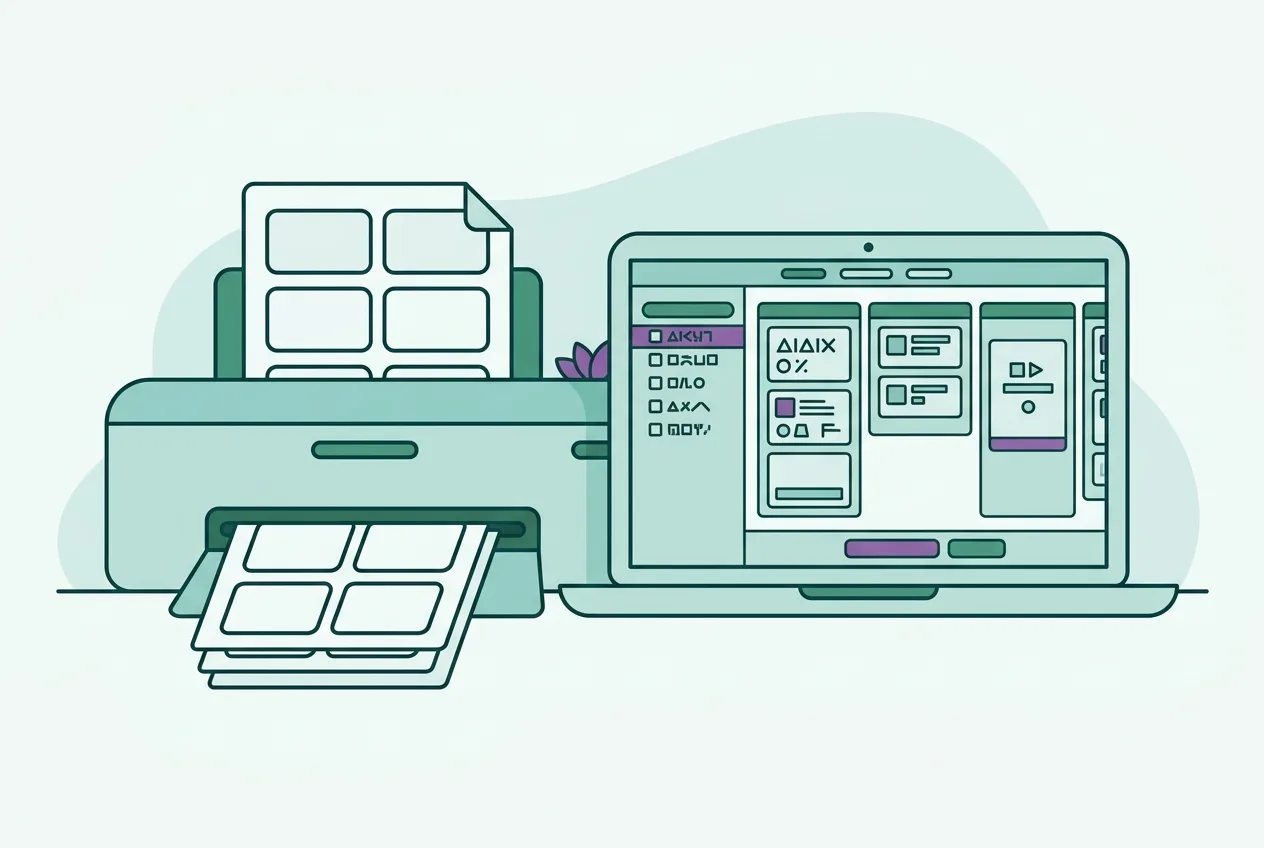
Anki does not have a built-in "Export to PDF" button. To convert an Anki deck into a PDF, you must first export your notes as a plain text file (typically a .txt or .csv file) from the Anki desktop application. Once you have this text file, you can then use a separate tool or method to format and convert it into a printable PDF document, allowing you to study your flashcards physically or offline.
Why Convert Anki Decks to PDF?
While digital flashcards offer convenience and powerful spaced repetition algorithms, there are several reasons why students often look for ways to convert their Anki decks into PDF format:
- Physical Study Materials: Many students prefer to study with physical flashcards or printed sheets, finding that tactile interaction enhances memory and focus. Printing your Anki deck allows you to write notes directly on the cards, highlight key information, and shuffle them physically.
- Offline Access Without Devices: A PDF of your flashcards means you can study anywhere, regardless of internet availability, battery life, or screen time concerns. This is useful for studying during commutes, in places where electronic devices are discouraged, or simply to give your eyes a break from screens.
- Annotation and Active Recall: Printed flashcards provide an immediate surface for active recall practice. You can cover answers, write out explanations, or draw diagrams without switching between applications or screens. This can reinforce learning in a different way than digital interaction.
- Sharing with Others: If you're studying with classmates who don't use Anki, or you want to share a summary of key terms from your notes, a PDF offers a universally accessible format. It ensures everyone can view the content without needing specific software.
- Alternative Study Preferences: Different learners thrive with different methods. For some, the act of flipping a physical card or seeing a whole set of information laid out on paper is more effective than scrolling through digital cards one by one. Converting to PDF accommodates these varied learning styles.
Converting your Anki deck to PDF adds another dimension to your study strategy, combining the benefits of Anki's organization with the flexibility of physical or universally readable documents.
Method 1: Exporting from Anki Desktop (Notes to Text File)
The foundational step for converting your Anki deck to PDF is to export the raw note data into a text-based format. Anki's desktop application allows you to do this efficiently.
Here's a step-by-step guide:
- Open Anki Desktop: Launch the Anki application on your computer.
- Select Your Deck: From the main Anki window, locate and select the specific deck you wish to export. You don't need to open the deck for review; just ensure it's highlighted.
- Initiate Export: Go to the
Filemenu at the top of the Anki window. From the dropdown, selectExport.... - Choose Export Format: In the "Export" dialog box that appears, you will see several options.
- Under "Export format," select
Notes in Plain Text. This option extracts the content of your flashcard fields (front, back, etc.) into a simple text file. - Important: Do not choose "Collection Package (.apkg)" for this purpose, as that is for backing up or sharing entire Anki collections, not for generating readable text.
- Under "Export format," select
- Configure Options:
- Include: Ensure that the specific note type and fields you want to include in your PDF are selected. For most flashcards, you'll want to include the 'Front' and 'Back' fields. If your cards have other fields (e.g., 'Extra', 'Hint'), decide if you want them in your PDF.
- Include HTML: Anki notes often contain basic HTML formatting (e.g., bold text, bullet points). If you want to preserve some of this formatting in your text export, check "Include HTML." Keep in mind that not all PDF converters will interpret complex HTML perfectly, but basic tags usually work well enough for layout. If you want absolutely plain text, uncheck this.
- Include tags: If your flashcards use tags for organization and you want them to appear in your export, check this box.
- Field separator: A tab character is usually the default and works well for most conversions. This character separates the different fields (e.g., front of card, back of card) within each line of your exported text file.
- Select Output File: Click the
Export...button. Anki will then prompt you to choose a location on your computer to save the file. - Save the Text File: Give your file a clear name (e.g.,
Biology_Chapter1_Flashcards.txt) and clickSave. The file will be saved with a.txtor.csvextension, depending on your choices.
You now have a plain text file containing all the information from your selected Anki deck. This file serves as the raw material for creating your PDF flashcards.
Method 2: Converting an .apkg File (Indirect Process)
An .apkg file is a complete Anki deck package, designed for sharing or backing up an entire deck, including its notes, card templates, media (images, audio), and scheduling information. While it's a convenient way to transfer decks between Anki instances, you cannot directly convert an .apkg file into a readable PDF document. The .apkg file itself is a compressed archive and not a text document.
To get your flashcard content from an .apkg file into a PDF, you must first import the .apkg file into your Anki Desktop application. Once imported, the deck will be available in your Anki collection, and you can then follow Method 1 to export its notes as a plain text file.
Here's how to do it:
- Open Anki Desktop: Launch the Anki application on your computer.
- Import the .apkg File:
- Go to the
Filemenu at the top of the Anki window. - Select
Import.... - Browse to the location where your
.apkgfile is saved, select it, and clickOpen.
- Go to the
- Confirm Import: Anki will process the
.apkgfile and add the new deck (or update an existing one) to your collection. You'll see a confirmation message once the import is complete. - Locate the New Deck: The newly imported deck will now appear in your main Anki decks list.
- Proceed with Text Export: Once the
.apkgdeck is successfully imported into your Anki collection, you can treat it like any other deck you created. Follow all the steps outlined in Method 1: Exporting from Anki Desktop (Notes to Text File) to export its contents as a plain text file.
After exporting as a text file, you will be ready for the next step: converting that text file into a formatted PDF.
Using Online Converters for Anki to PDF
Once you have your Anki notes exported as a plain text (.txt or .csv) file, the next step is to transform this raw data into a structured, printable PDF format. Manually formatting a large text file into individual flashcard layouts in a word processor can be time-consuming and tedious. This is where dedicated online converters become useful.
These tools are designed to take your plain text data, identify the front and back of each flashcard, and arrange them neatly into a PDF document, often with options for layout and styling.
Quizard offers a free Anki to PDF converter tool specifically designed for this purpose. It streamlines the process and helps you create organized flashcard sheets.
Here’s how such converters generally work:
- Upload Your Text File: You typically start by uploading the
.txtor.csvfile you exported from Anki. The converter reads the content of this file. - Identify Front and Back Fields: Since your text file contains multiple fields (e.g., "Front," "Back," "Tags," "Extra"), the converter needs to know which fields correspond to the visible question (front of the card) and which to the answer (back of the card). You will usually specify this by selecting the column names or field indices from your uploaded data. For example, you might tell the converter that the first column is the "Front" and the second is the "Back."
- Choose Layout and Styling (Optional): Many converters offer options to customize how your flashcards appear on the PDF:
- Cards per Page: Decide how many flashcards you want on each printed page (e.g., 2x2, 3x3 layout).
- Font Size and Style: Adjust text appearance for readability.
- Borders and Spacing: Add borders around cards or adjust the space between them.
- Front/Back Separation: Some tools can generate two PDFs – one with all fronts and one with all backs – for easier double-sided printing.
- Generate PDF: After configuring your preferences, the converter processes your data and generates a PDF file.
- Download and Print: You can then download the resulting PDF document to your computer and print it.
Using a tool like the Quizard Anki to PDF converter can save you significant time and effort, ensuring your printed flashcards are well-organized and easy to study from. This converter processes everything directly in your browser, maintaining the privacy of your study materials. It is part of Quizard's suite of free student tools designed to simplify common academic tasks.
Tips for Optimizing Your PDF Flashcards
Converting your Anki deck to PDF is a practical step, but the effectiveness of the printed flashcards depends on how well they are prepared. Here are some tips to optimize your PDF flashcards for better study:
- Field Selection is Key: When you export your notes from Anki (as described in Method 1), be mindful of which fields you include. Only select the fields that are essential for your flashcards (typically the question on the front and the answer on the back). Including too many irrelevant fields can clutter your PDF cards and make them less effective.
- Handle HTML Formatting Strategically: If your Anki notes contain HTML for bolding, italics, bullet points, or other styling, remember to check "Include HTML" during export. Basic HTML tags like
<b>,<i>,<u>, and<ul>/<ol>are usually well-supported by good PDF converters. However, complex or custom Anki CSS styling might not translate perfectly. Review your first few printed cards to ensure the formatting is acceptable. If your notes are very complex, it might be better to export as plain text and manually reformat critical elements or simplify them directly in Anki. - Choose an Optimal Layout: When using a converter, experiment with different "cards per page" layouts.
- Larger cards (e.g., 2x2 per page): Good for cards with more text or diagrams that need more space, or for making actual physical flashcards to cut out.
- Smaller cards (e.g., 3x3 or 4x4 per page): Efficient for dense information or when you need to review many cards quickly on a sheet. Consider your content and how you intend to use the PDF before finalizing the layout.
- Prioritize Clarity and Conciseness: Even on a PDF, the principles of effective flashcards apply. Keep the question and answer concise and to the point. Long, rambling answers are difficult to recall and review. Aim for brevity to facilitate active recall, which is a key benefit of flashcard study, as supported by research into the testing effect. You can find more insights on this topic in our article on The Science of Flashcards.
- Images and Media: Understand that Anki's "Notes in Plain Text" export does not include images, audio, or video files. If your Anki deck heavily relies on visual or auditory cues, these will be absent from your text export and thus from your PDF.
- For critical images: You might need to manually insert images into your PDF after conversion using a PDF editor, or print them separately and attach them.
- For comprehensive study: If your learning materials are highly visual, consider using a platform like Quizard, which generates flashcards and questions directly from uploaded lecture slides. This ensures that visual context from your original materials is preserved and integrated into your study resources.
- Prepare for Double-Sided Printing: If you intend to cut out and use your PDF as physical flashcards, ensure your PDF converter or your printer settings can handle double-sided printing effectively. Look for options like "flip on long edge" or "flip on short edge" in your printer dialogue. Some converters create separate PDF pages for fronts and backs, requiring careful alignment during manual double-sided printing.
By paying attention to these details, you can transform your Anki deck into a highly effective printed study tool that complements your digital Anki experience.
Beyond Anki Export: Streamlining Your Flashcard Creation
While exporting Anki decks to PDF is a valuable technique for certain study preferences, the initial process of creating flashcards can often be time-consuming. Many students spend hours manually transcribing notes or lecture slides into Anki cards.
Platforms like Quizard offer an alternative approach to flashcard and question generation. Instead of manually creating cards and then needing to export them, Quizard allows you to upload your lecture slides, notes, or recordings. From these materials, it automatically generates exam-style questions and flashcards. This can significantly reduce the effort involved in preparing study materials.
Key benefits of this approach include:
- Automated Generation: Flashcards and questions are created directly from your course content, ensuring they are relevant and comprehensive.
- Contextual Links: Every generated question and flashcard links directly back to the slide or specific section of your notes it came from. This provides immediate context for deeper understanding and verification, which can be particularly useful when reviewing complex topics.
- Comprehensive Coverage: A coverage map helps you see which parts of your lecture materials have been covered by questions or flashcards, ensuring you don't miss any key topics.
- Flexible Exports: If you prefer to use Anki for your spaced-repetition reviews, Quizard still supports your workflow. All generated questions and flashcards can be exported to Anki or CSV format, allowing you to integrate them into your existing Anki collection. This means you get the best of both worlds: efficient content generation and your preferred review system. You can learn more about how Quizard helps students study effectively by visiting our features page.
For students managing a large volume of lecture material, an integrated system like Quizard can bridge the gap between initial content creation and final review, offering a more efficient path to exam readiness.
FAQ
Can I export an Anki deck with images to PDF directly?
No, Anki's "Notes in Plain Text" export, which is the basis for PDF conversion, does not include images, audio, or video files. These media elements are stored separately in Anki. To include images, you would need to manually insert them into the PDF after conversion using a PDF editor, or explore more complex methods involving custom Anki add-ons or web-rendering tools that process the card templates, which are generally beyond simple export.
How do I make my PDF flashcards double-sided for printing?
Most PDF viewers and printers offer options for double-sided (duplex) printing. When you access the print dialogue, look for settings such as "Print on both sides of paper," "Two-sided printing," or "Duplex printing." You will also usually need to specify whether to "Flip on long edge" or "Flip on short edge" to ensure the back of the card aligns correctly with the front when the paper is turned.
Are there other ways to study Anki decks besides the app and PDF?
Yes, beyond the Anki application and printed PDFs, you can also export your Anki notes into other basic formats. You can export to CSV (Comma Separated Values) for review in a spreadsheet program, or to plain text for simple reading or integration into other text-based study tools. Some students also use third-party tools to convert Anki decks into other flashcard formats or integrate them with different study platforms.
What is the difference between exporting "Notes in Plain Text" and "Collection Package (.apkg)"?
"Notes in Plain Text" exports the content of your flashcards (e.g., the text from the front and back fields) into a simple, human-readable text file (like .txt or .csv). This format is ideal for converting to PDF or using in other text-based applications. A "Collection Package (.apkg)," on the other hand, exports the entire deck, including card templates, styling, media, and scheduling data, making it suitable for importing into another Anki instance but not for direct reading or conversion to formats like PDF.
Quizard turns your own lecture slides into questions that cite the slide.
Start free