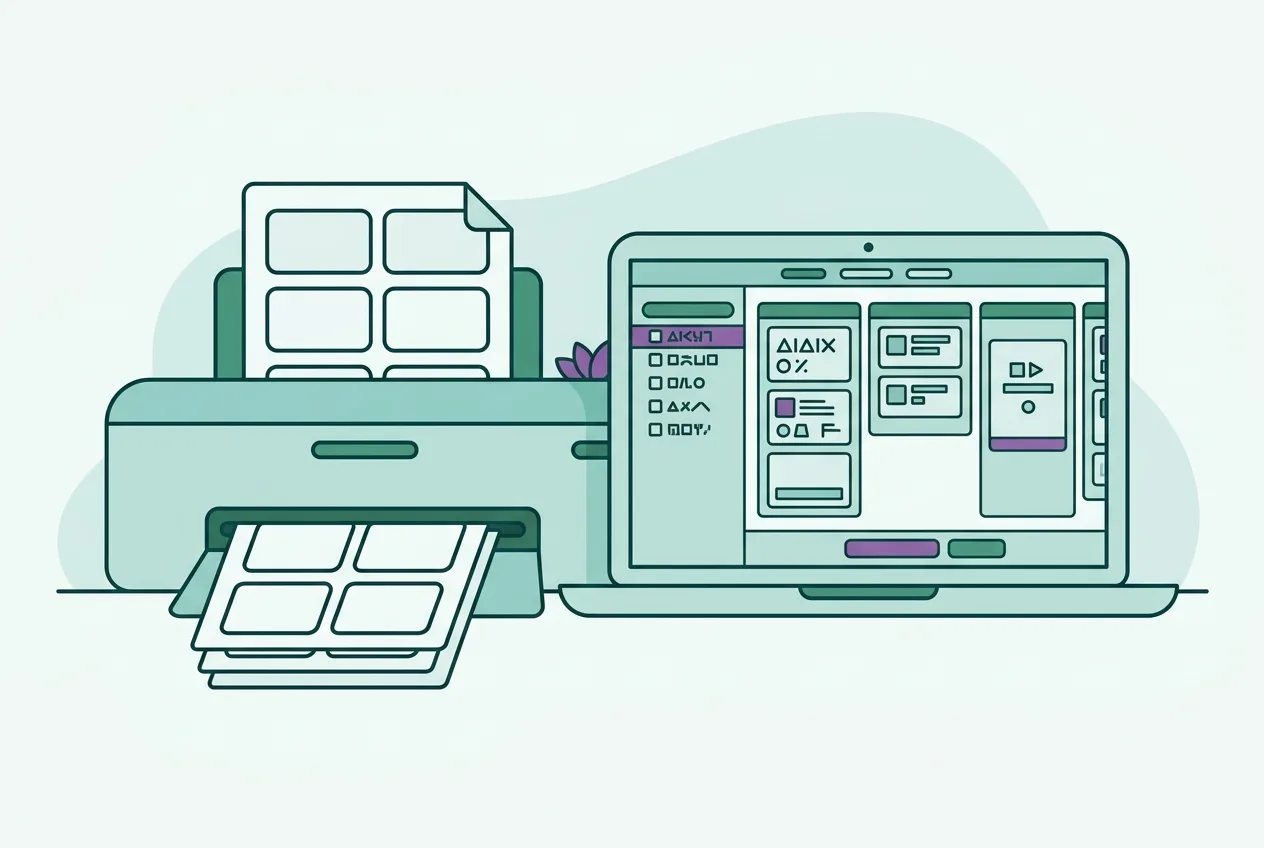

How to Print Anki Flashcards for Enhanced Study
Oct 06, 2026 · 12 min read · The Quizard Team
Printing Anki flashcards involves exporting your deck as text, converting it into a printable PDF, and then using a printer to create physical cards. This approach can complement digital study by offering a tactile learning experience and reducing screen time.
While Anki excels at digital spaced repetition, physical flashcards provide unique benefits that enhance retention and active recall, particularly for initial learning or specific review sessions. This guide will walk you through the process of getting your Anki cards onto paper, exploring effective print layouts and when physical cards can offer an edge over their digital counterparts.
Why Use Physical Flashcards?
Despite the convenience of digital flashcards, paper versions offer distinct advantages that can deepen your learning and improve recall. Integrating physical flashcards into your study routine provides a multi-sensory experience that digital apps sometimes miss.
- Tactile Engagement and Kinesthetic Learning: The act of physically holding, sorting, and manipulating cards engages more of your senses. This kinesthetic involvement can strengthen memory pathways, making information easier to recall. You can sort cards into "known" and "unknown" piles, physically reorder them, or even shuffle them to break predictable patterns.
- Reduced Screen Fatigue and Distractions: Hours spent staring at a screen can lead to eye strain and mental fatigue. Physical flashcards offer a break from digital devices, allowing your eyes to rest. Moreover, studying with paper cards eliminates the temptation of notifications, social media, or other digital distractions inherent in device-based study.
- Offline and Flexible Study Environments: Physical flashcards require no battery life or internet connection, making them ideal for studying anywhere—on public transport, during a power outage, or in environments where devices are discouraged. They offer unparalleled portability and readiness.
- Group Study and Sharing: Paper flashcards are excellent for collaborative learning. You can easily share them with study partners, quiz each other verbally, and discuss concepts without everyone needing a device. This interaction can clarify understanding and expose different perspectives.
Exporting Your Anki Deck for Printing
Before you can print your Anki flashcards, you need to export the data from your Anki desktop application. This process extracts the front and back content of your cards into a plain text file.
- Open Anki Desktop: Launch the Anki application on your computer.
- Select Your Deck: From the main Anki window, choose the deck you wish to print.
- Access the Browser: Click on "Browse" in the top menu or press 'B' on your keyboard. This will open the Anki Browser, displaying all the cards in your collection.
- Filter for Your Deck (Optional but Recommended): In the search bar at the top of the Browser, type
deck:"Your Deck Name"(replace "Your Deck Name" with the exact name of your deck). This ensures you only see cards from the specific deck you want to export. If you want to export all cards in your collection, you can skip this step. - Select All Cards: Click on any card in the list, then press
Ctrl+A(Windows) orCmd+A(Mac) to select all displayed cards. - Initiate Export: Go to "File" in the top menu, then select "Export..."
- Choose Export Format: In the "Export" dialog box, select "Notes in Plain Text" from the dropdown menu. This format is crucial for easy conversion to a printable layout.
- Configure Export Options:
- Include HTML, media, and LaTeX: Make sure this option is unchecked. Including these elements can complicate the plain text export and subsequent conversion. Focus on the core text content.
- Fields: Select "All fields". This ensures both the front and back of your cards are included.
- Separator: The default tab separator (
\t) is usually fine.
- Save the File: Click "Export..." and choose a location on your computer to save the
.txtfile. Give it a descriptive name, likeMy_Anki_Deck_Export.txt.
This .txt file now contains all the text from your chosen Anki flashcards, ready for the next step: converting it into a printable PDF.
Converting Anki Export to a Printable PDF
Once you have your Anki deck exported as a plain text file, the next step is to convert it into a well-formatted PDF document that you can print. Anki itself does not provide a direct feature to print multiple cards per page or handle double-sided layouts efficiently from its export. This is where dedicated conversion tools become useful.
You can use online tools designed specifically for this purpose. Quizard offers a free Anki to PDF converter that streamlines this process. This tool is browser-based, meaning you can convert your file without downloading any software.
Here's how to use such a tool:
- Access the Converter: Navigate to the Anki to PDF converter page.
- Upload Your Exported File: You will find an option to upload your
.txtfile (the one you exported from Anki). Select the file from your computer. - Choose Layout and Other Options: The converter will typically offer several settings to customise your printable PDF:
- Cards per page: Select how many cards you want printed on each side of your paper (e.g., 1, 2, 4, or 8 cards per page).
- Include "Front" and "Back" labels: Decide if you want "Front:" and "Back:" labels to appear on your cards.
- Font size and styling: Adjust these to ensure readability and fit.
- Margins and padding: Fine-tune the spacing if needed.
- Double-sided preparation: Crucially, some converters will automatically arrange the cards so that when printed double-sided, the corresponding front and back of each card align correctly.
- Generate and Download PDF: After selecting your desired options, click the "Generate PDF" or similar button. The tool will process your file and provide a link to download the generated PDF document.
This PDF will be ready for printing, with your flashcards arranged according to your chosen layout, making it much easier to cut them out later. Quizard and similar tools simplify the conversion, ensuring your physical flashcards are neatly formatted and professional-looking. You can find other useful student tools as well.
Optimising Print Layouts for Flashcards
Effective printing requires more than just converting your text file; it involves choosing the right layout and settings to maximise usability and minimise waste.
Cards Per Page
The number of cards you print per page significantly impacts readability, paper usage, and cutting effort.
- 1 Card Per Page:
- Pros: Maximum space for detailed content, large font sizes, and diagrams. Very easy to read.
- Cons: Uses a lot of paper, creates large physical cards that might be unwieldy.
- Best for: Cards with extensive explanations, complex diagrams, or when you need maximum readability.
- 2 Cards Per Page (Portrait or Landscape):
- Pros: Good balance between content space and paper efficiency. Cards are a manageable size.
- Cons: Still uses a fair amount of paper if your deck is very large.
- Best for: Most standard flashcards with moderate text, often used when printing on smaller paper or for larger hands-on cards.
- 4 Cards Per Page (2x2 Grid):
- Pros: Highly efficient use of paper. Cards are a common size for traditional flashcards.
- Cons: Limited space for text, requires smaller font sizes. Can be challenging to read if cards are content-heavy.
- Best for: Vocabulary, short definitions, quick facts, or when trying to save paper and have many cards.
- 8 Cards Per Page (2x4 Grid):
- Pros: Most paper-efficient layout. Cards are small and highly portable.
- Cons: Very limited space, font sizes will be small. Requires precise cutting.
- Best for: Rapid-fire review of single words, dates, or very concise facts, especially for very large decks where space is at a premium.
When choosing, consider the density of information on your cards. A highly detailed card might be unreadable at 8 cards per page, while a simple vocabulary card might be wasteful at 1 card per page.
Double-Sided Printing
Printing double-sided is essential for true flashcards, with the question on one side and the answer on the other. This requires careful attention to printer settings.
- Automatic Duplex Printers: If your printer has an automatic duplexing feature, select "Print on both sides" in your printer settings. Ensure you choose the correct "Flip on long edge" or "Flip on short edge" option. For most flashcard layouts, you will likely need to Flip on long edge if the cards are arranged vertically on the page, or Flip on short edge if they are arranged horizontally (e.g., two cards side-by-side that will be cut and flipped left-to-right). A test print on a single page is highly recommended.
- Manual Duplex Printers: For printers without automatic duplexing, you'll need to print one side, then manually flip the paper and feed it back into the printer.
- Print Odd Pages First: In your printer settings, select to print only "Odd Pages" (or "Front Side" if available).
- Flip the Stack: Carefully take the printed stack, flip it over, and re-insert it into the printer's paper tray. Pay close attention to how your printer feeds paper to ensure the correct orientation for the second side. A small arrow or diagram on the paper tray often indicates the correct way to load for double-sided printing.
- Print Even Pages: Now, print only "Even Pages" (or "Back Side").
- Crucial Tip: Always print a single test page (or the first two pages) to ensure correct alignment before printing your entire deck. This helps you figure out the correct flipping direction and avoid wasting paper.
Paper Choice
- Card Stock: For durable, long-lasting flashcards that feel substantial and prevent bleed-through, card stock (e.g., 65lb/176gsm or 90lb/243gsm) is ideal. It withstands frequent handling and shuffling better than standard paper.
- Regular Printer Paper (20-24lb/75-90gsm): This is a more economical option, especially for very large decks or if you only need cards for a short period. However, it's less durable and more prone to bleed-through if using markers.
Cutting Your Flashcards
Once printed, your cards will need to be cut.
- Guillotine Paper Cutter: The most efficient and precise method for cutting many cards. It produces straight edges quickly.
- Ruler and Craft Knife/X-Acto Knife: Provides good precision but requires a cutting mat and steady hand. Slower than a guillotine.
- Scissors: Suitable for small batches of cards or if other tools are unavailable. It is the least precise option for perfectly straight cuts.
For optimal results, ensure your printer prints crop marks (guides for cutting) if the converter tool supports it. Quizard's Anki to PDF converter includes crop marks to make cutting easier and more accurate.
Beyond Printing: Integrating Physical and Digital Study
While printing offers unique benefits, the most effective study strategy often involves combining the strengths of both physical and digital tools.
- Initial Learning with Physical Cards, Spaced Repetition with Digital: Many students find physical cards excellent for initial learning and understanding new concepts. The tactile nature and ability to quickly sort and manipulate cards can aid in grasping fundamentals. Once the basics are covered, transition to digital Anki for its powerful spaced repetition algorithm, ensuring long-term retention of what you've learned. You can read more about the science of flashcards.
- Digital Tools for Content Generation, Physical for Focused Review: Tools like Quizard can generate exam-style questions and flashcards directly from your lecture slides or notes. This saves significant time in card creation. You can then print a curated selection of these generated flashcards, focusing on key concepts or areas where you need hands-on practice, while keeping the full digital deck for broader review and tracking. For instance, you could use Quizard to create flashcards from your biology lecture slides, then print only the ones related to complex anatomical structures for tactile manipulation.
- Complementary Study Techniques: Use physical cards for active recall drills during short breaks, then switch to a digital tool for timed quizzes or to track your progress across a larger set of material. Remember that flashcards are just one part of a comprehensive study plan. Combine them with other effective study techniques like practice testing and elaborative interrogation.
Physical flashcards are not a replacement for digital tools but a powerful supplement. By thoughtfully integrating printed Anki cards into your study routine, you can leverage the best of both worlds to achieve a deeper and more durable understanding of your course material.
FAQ
Can I print images on Anki flashcards?
Yes, if your Anki cards contain images, most conversion tools for printing will render these images within the PDF document. However, for plain text exports, images are typically excluded. If you need images, ensure your converter supports rich text or HTML export, or re-embed them manually after generating the text-only layout.
What's the best paper for printing flashcards?
For durability and a premium feel, card stock (around 65lb/176gsm to 90lb/243gsm) is highly recommended. It prevents ink bleed-through and withstands frequent handling. If budget is a concern or for temporary use, regular 20-24lb (75-90gsm) printer paper will suffice, though it will be less robust.
How do I ensure double-sided cards align correctly?
Always print a single test page or the first two pages of your PDF before printing your entire deck. This allows you to check the alignment and learn how to correctly flip and reinsert the paper into your printer. Many printers have indicators on the paper tray showing the proper orientation for double-sided printing.
Is it worth printing all my Anki cards?
Not necessarily. Printing thousands of cards can be resource-intensive and create a cumbersome stack. Consider printing only the most challenging cards, those requiring tactile manipulation (e.g., complex diagrams), or a subset for specific offline review sessions. For long-term spaced repetition and managing vast amounts of information, digital Anki remains highly efficient.
Quizard turns your own lecture slides into questions that cite the slide.
Start free